
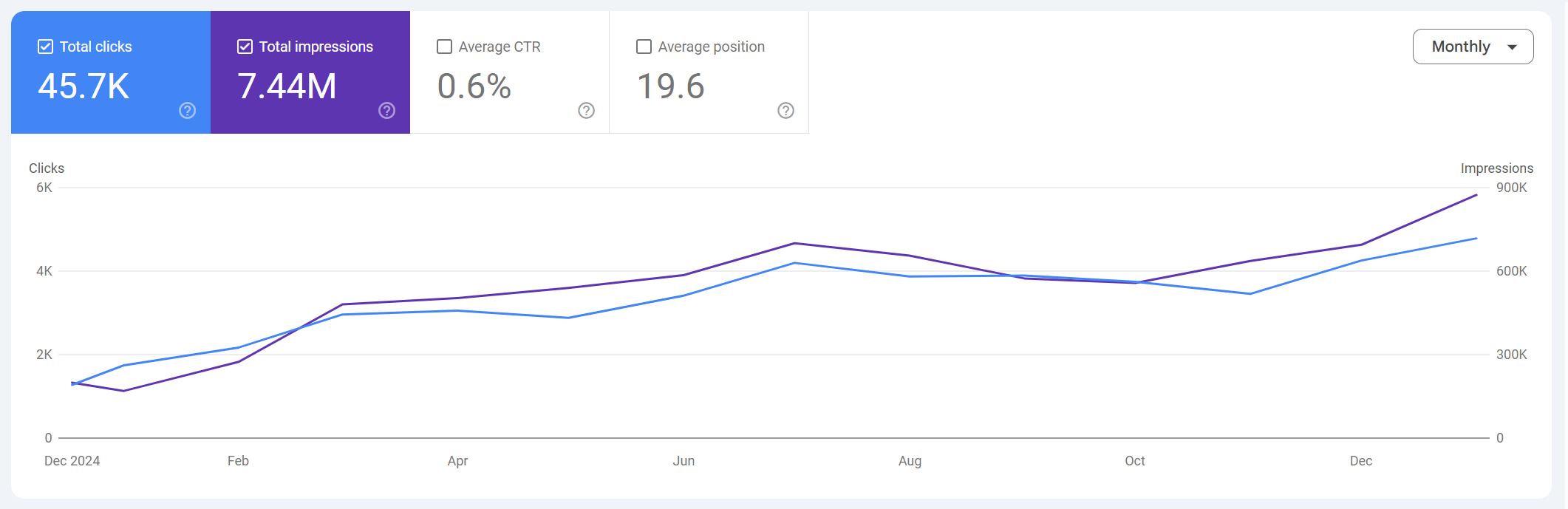
Before you start
Start with one office and three practice pages. Record the URL, evidence, next action and owner for each finding.
Tools and access you need
| Tool | Use it for | Access or cost |
|---|---|---|
| Google Search Console | Queries, page performance and indexing | Free; verified property access |
| GA4 | Organic landing pages and configured key events | Free; account access |
| Google Business Profile | Office details and website destination | Free; profile management access |
| PageSpeed Insights | Individual-page performance | Free; public URL |
| Screaming Frog SEO Spider | Broken links, redirects and page metadata | Free crawl limited to 500 URLs; paid for larger crawls |
| Ahrefs or Semrush | Backlinks and competitor pages | Optional; plan limits vary |
| Spreadsheet | Evidence, priorities and verification | Your existing spreadsheet tool |
You do not need every paid tool. Start with Search Console, PageSpeed Insights and a small crawl. Keep client names and confidential matter details out of screenshots and exports.
Step 1: find practice pages losing search traffic
Tool: Google Search Console. Select the property covering the firm’s website, then:
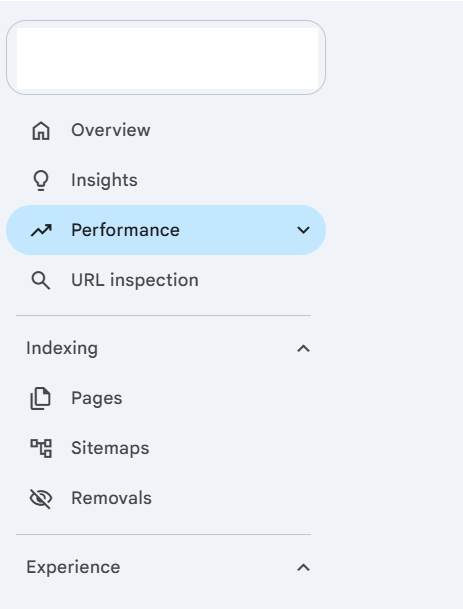
- Open Performance → Search results. Keep search type Web.
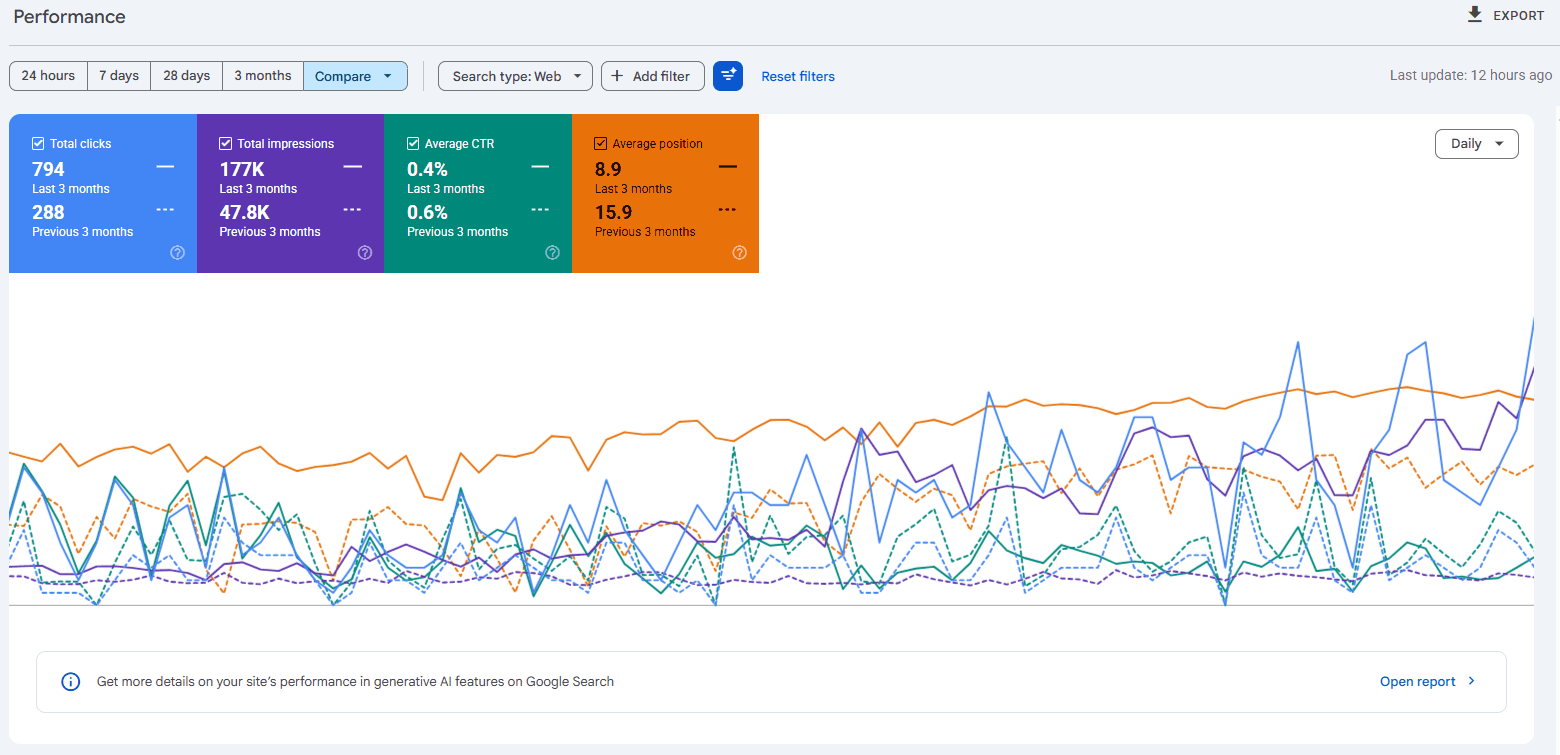
- Open the date filter, choose Compare, and compare the last three months with the previous three months. Apply the comparison.
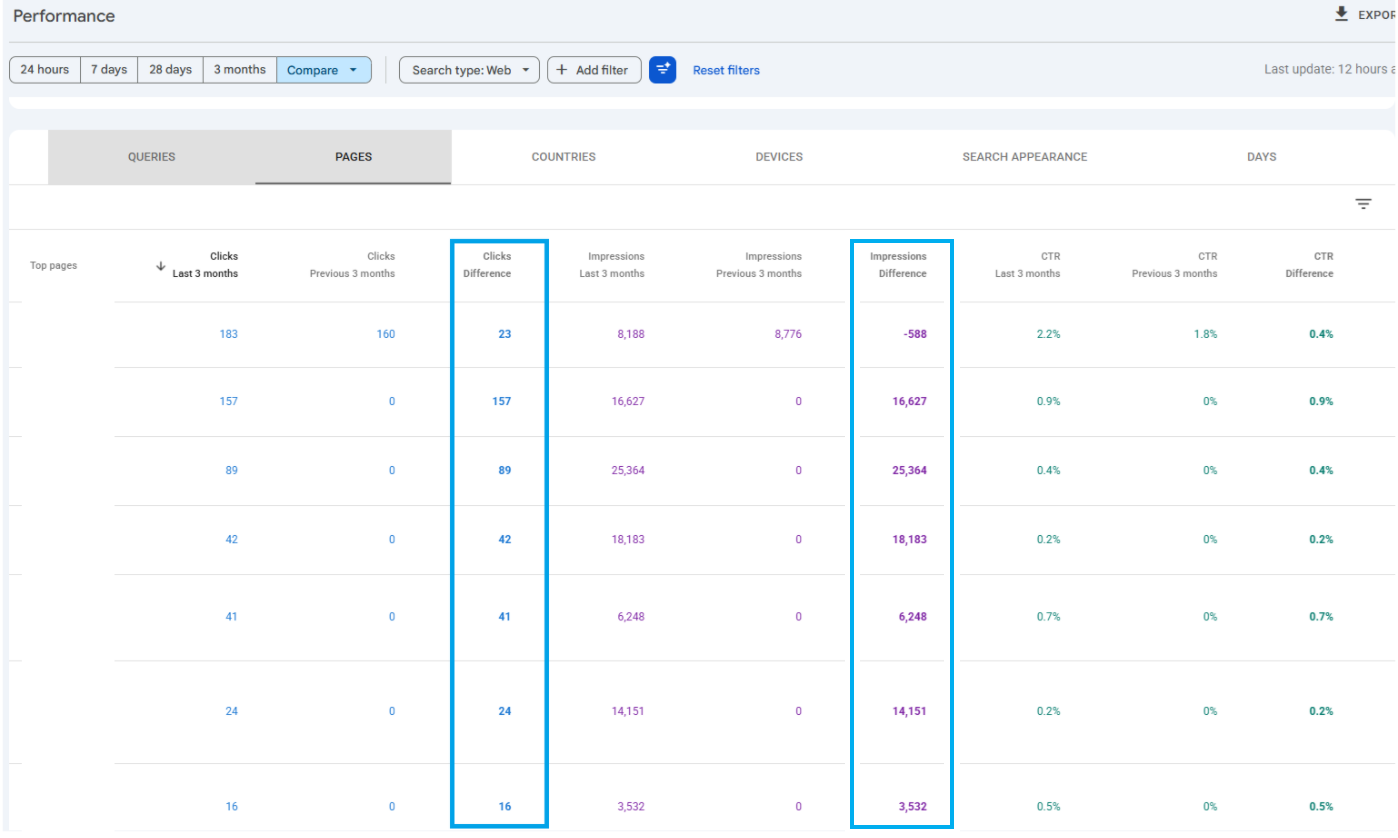
- Select Total clicks and Total impressions, then open Pages below the chart.
- Sort the clicks Difference column to find losses. Focus on your selected practice pages, not every URL.
- Click a page to filter the report, then open Queries to see which searches changed. Use Export to save the evidence.
For seasonal practices, also compare equivalent months year over year. Remove the page filter before investigating another page. Google’s Performance report instructions explain the table controls.
Open the Search results report
Compare the reporting periods
Switch to Pages
Inspect the Queries table
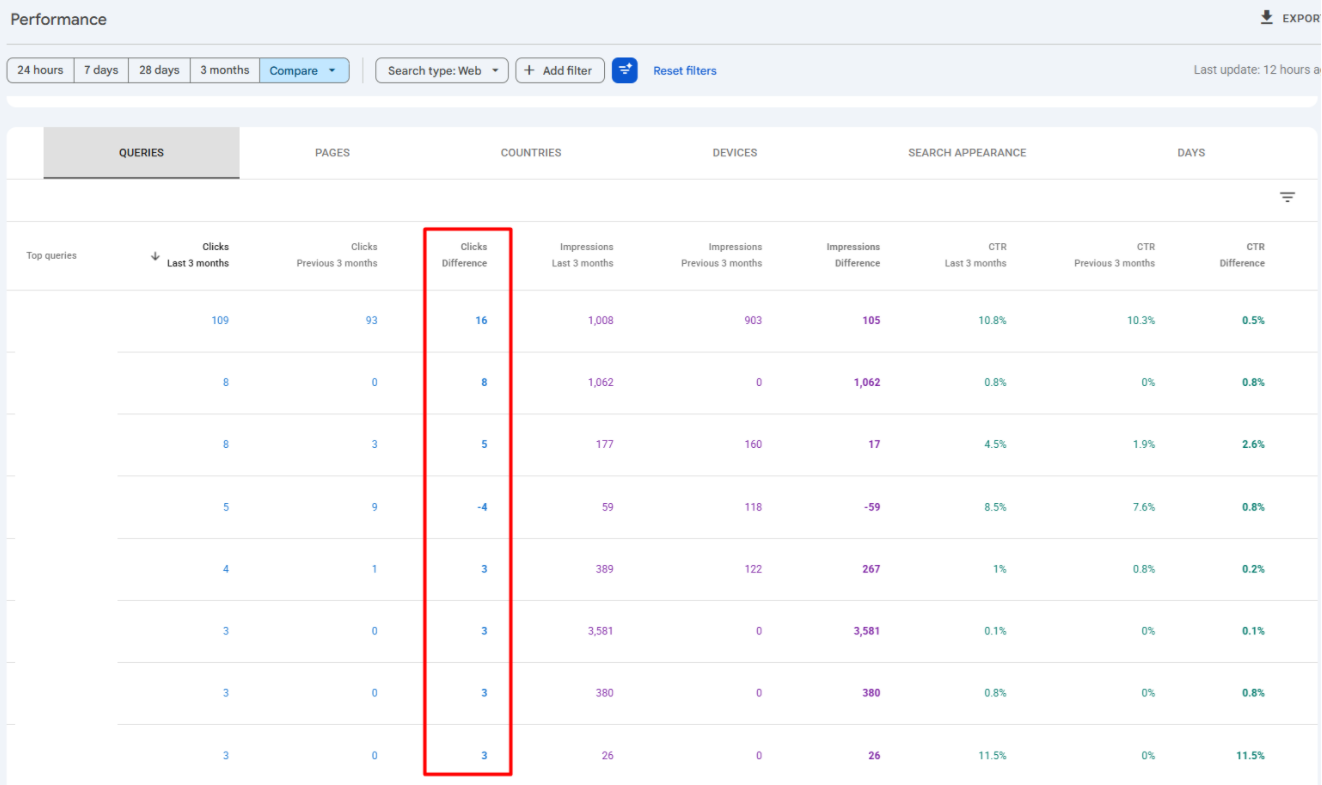
Record: URL, dates, affected queries, clicks and impressions. Diagnose the decline before choosing a repair.
Step 2: diagnose the decline before choosing checks
Keep the page filter. Enable Average CTR and Average position, then select an affected query. Compare the same query, country and device rather than relying on site-wide averages.
| Observed pattern | Investigate next |
|---|---|
| Impressions and position stable; clicks down | CTR, competing results and search-result features |
| Impressions down; position worsens | Lost rankings, competitors and recent site changes |
| Impressions down; position stable | Seasonality, demand and query mix |
| Page unexpectedly missing or impressions disappear | Indexing, crawl access, redirects and canonical selection |
These are clues, not diagnoses. Average position can hide changes. Check when the decline began and compare equivalent months before assigning a cause.
Check indexing only when the evidence points there
Use URL Inspection for missing/new pages, disappearing impressions or migration-related URL changes—not every traffic decline. Historical impressions do not prove current indexing.
- Paste the exact URL into the inspection bar and press Enter.
- Read the status and expand Page indexing.
- Check crawl permissions, last crawl and declared versus Google-selected canonicals.
- Select Test live URL if the current page may differ from Google’s stored version.
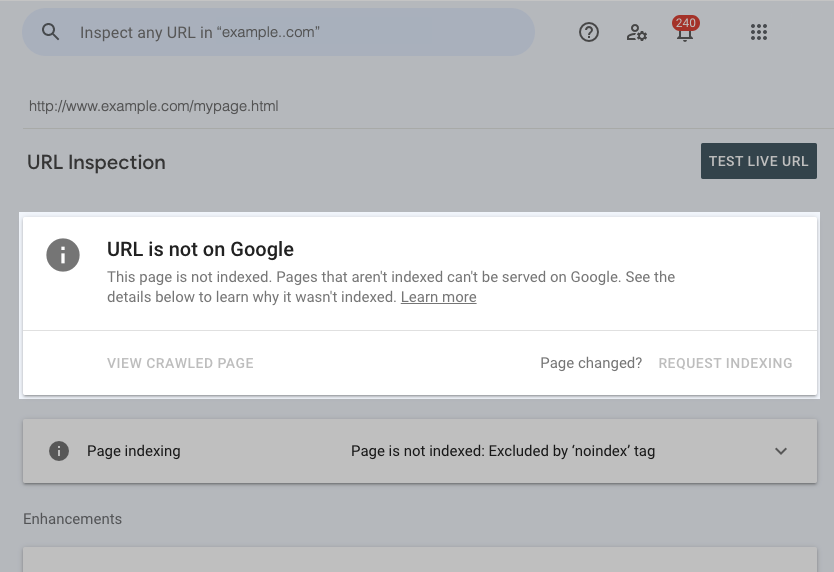
Record: status and canonicals. Intentional exclusions may be correct. The live test does not predict canonical selection; requesting indexing does not repair the cause.
Step 3: find broken links and review page metadata
Tool: Screaming Frog SEO Spider. Investigate broken paths and changed metadata:
- Enter the homepage in the crawl bar and click Start. Wait for the crawl to finish.
- Open Response Codes and filter Client Error (4xx).
- Select a broken destination. Open Inlinks in the lower pane to find the source pages linking to it.
- Export Bulk Export → Response Codes → Client Error (4xx) Inlinks to keep source and destination together.
- Review the Page Titles, Meta Description and H1 tabs for your selected practice pages.
See the vendor’s broken-link walkthrough.
- DestinationWhich URL returns an error?
- SourceWhich page contains that link?
- DecisionUpdate the link, restore the page or redirect to a genuine equivalent.
Record: source, destination and status. Investigate 403s; do not redirect every missing page to the homepage.
For ranking losses, inspect affected pages and competitors. Check service/location intent, titles, H1s, attorney details and contact paths. Review overlapping pages before creating more. Our law firm SEO services cover implementation.
Step 4: test mobile page performance
Tool: PageSpeed Insights. Test a practice page and the contact page, not only the homepage:
- Enter a public URL and click Analyze.
- Select Mobile in the completed report.
- Check real-user Core Web Vitals data if available. Note whether it describes the URL or the whole origin.
- Read the lab diagnostics below and record an actionable issue, such as an oversized image or blocking script.
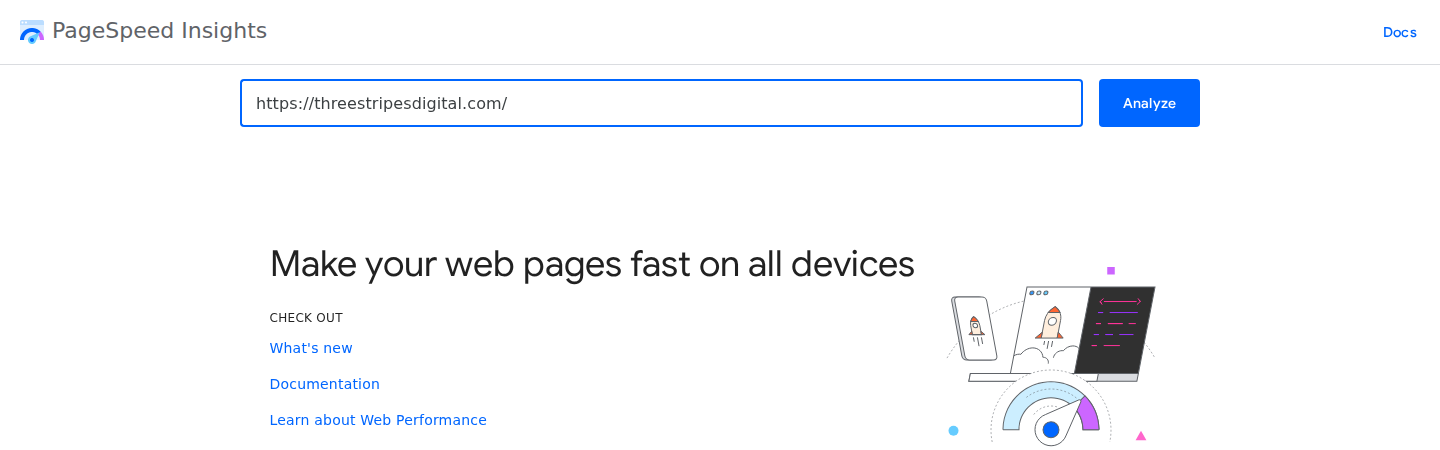
Record: URL, device, date and finding. Retest repairs; a higher lab score is not a completed audit.
Step 5: check the office’s local-search information
Tool: Google Business Profile. Sign in with the account managing the office, find the business on Google Search and choose Edit profile. Review its name, address, phone, categories, hours and website link against the location page. Controls can vary by profile and interface.
Open the website destination and confirm it describes that office. Investigate duplicate listings and old addresses. Compare observations from consistent search locations rather than relying on one search from your desk.
Before the campaign
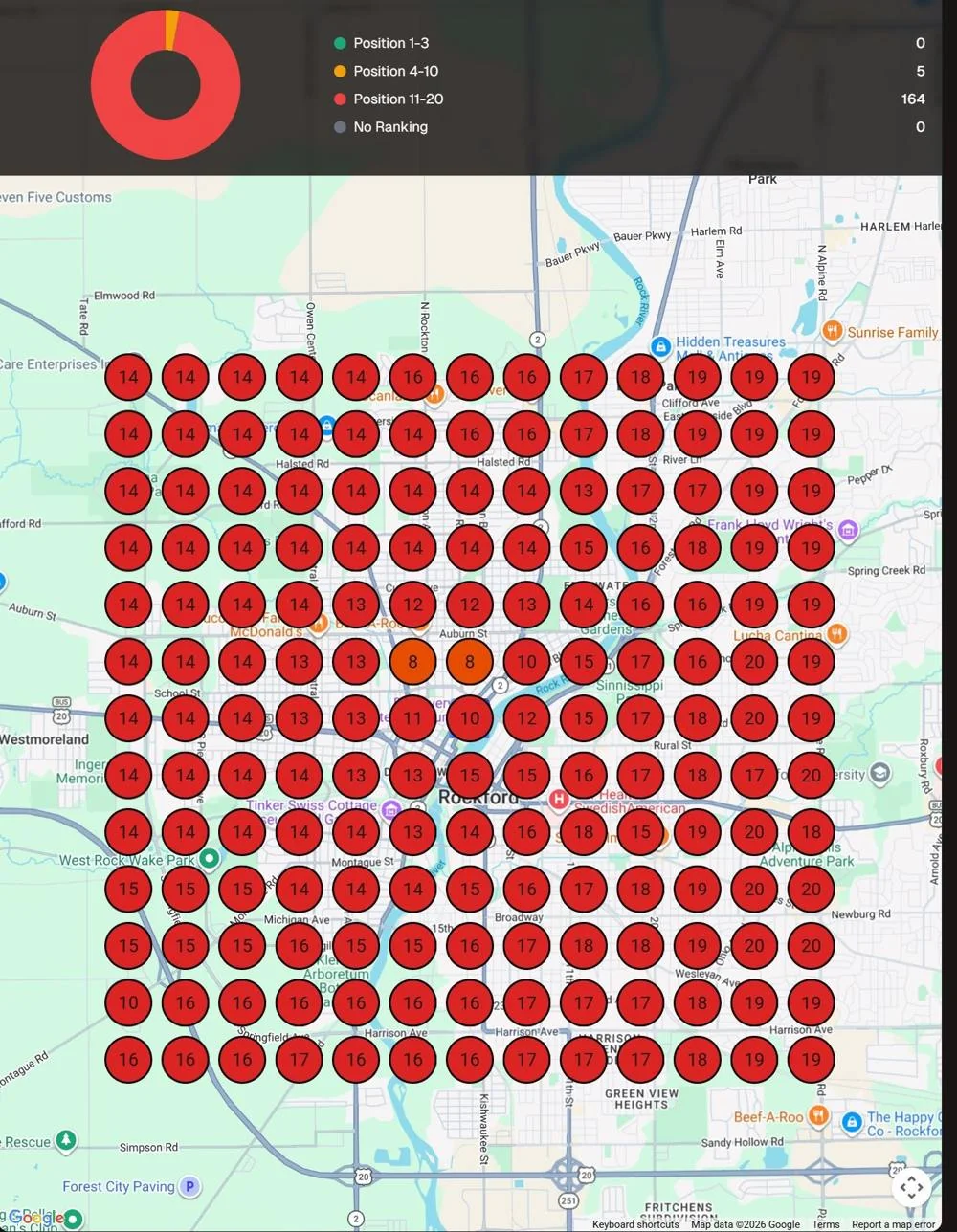
After the campaign
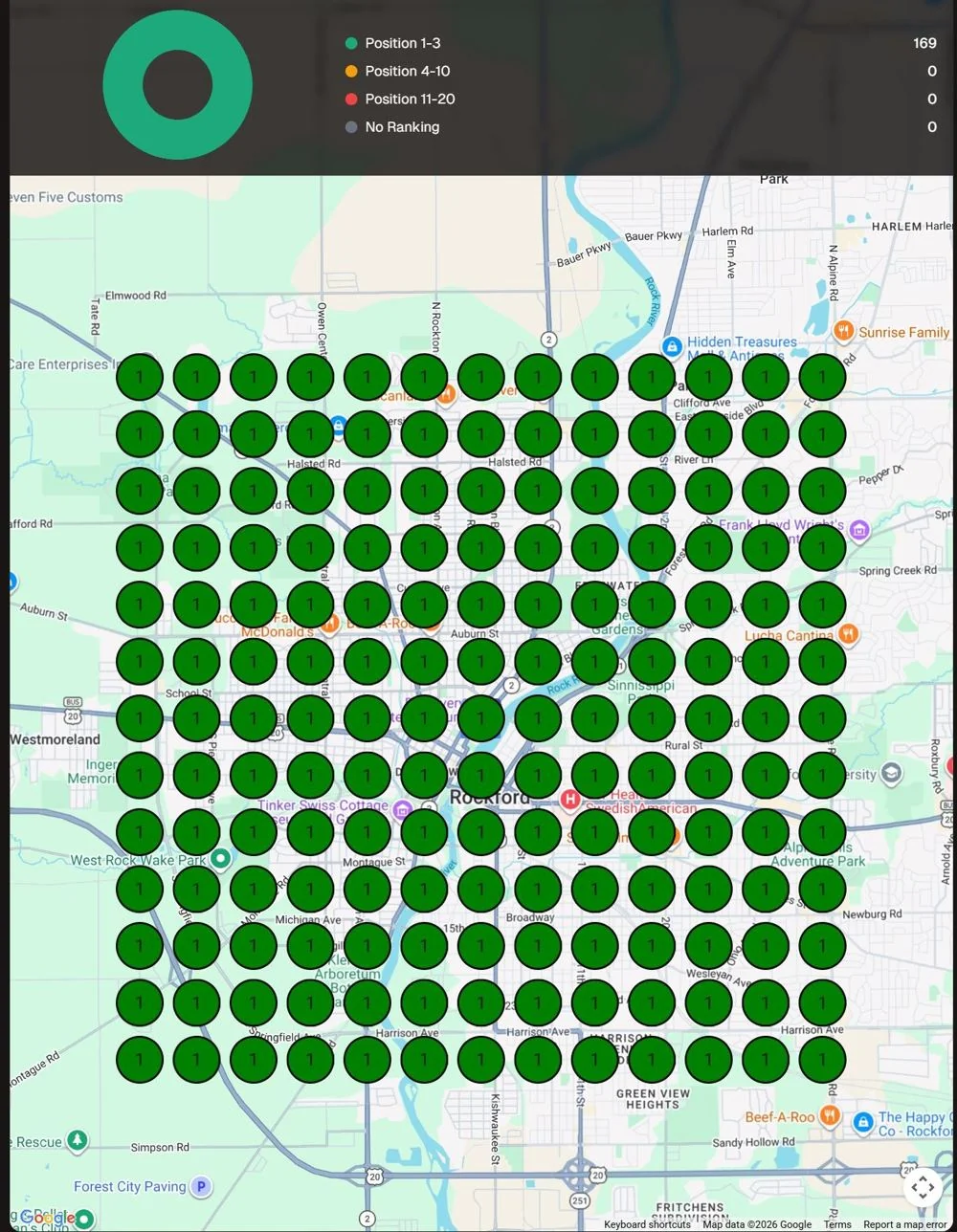
Record: inaccurate fields, linked URL and observation locations. Google’s local-ranking guidance covers relevance, distance and prominence. Our local SEO guide for lawyers explains the broader workflow.
Step 6: check backlinks and contact measurement
Use Search Console → Links for a starting list of referring sites. An optional Ahrefs or Semrush report adds competitor context. Inspect actual sources and destinations; a third-party authority score is not a diagnosis.
In GA4 → Reports, find Landing page under Engagement if your report collection includes it. Filter for Session default channel group = Organic Search and check relevant landing pages and configured key events. If the report is missing, ask the property’s administrator to expose it.
Check phone links and coordinate a form-delivery test with the firm. Verify receipt and who handles incoming inquiries. Tracking an event does not prove delivery or follow-up.
Turn the findings into a repair plan
| Priority | Example finding | Next action |
|---|---|---|
| First | Important practice page accidentally excluded | Fix the blocking signal; inspect again |
| First | Contact form fails to deliver | Repair delivery and verify with an authorized test |
| Next | Service pages overlap in intent | Review, improve or consolidate destinations |
| Later | Minor metadata housekeeping | Schedule after access and contact blockers |
These are examples. Add evidence, an owner and verification. Our SEO timeline guide explains how to assess progress.
A FEW THINGS YOU MAY BE WONDERING
Good questions. Clear answers.
Can I do a law firm SEO audit with free tools?
Yes, you can start with Search Console, PageSpeed Insights and a limited crawl. Larger sites and backlink comparisons may require paid tools or specialist help.
Do I need to buy both Ahrefs and Semrush?
No. Choose one if you need competitor and backlink research beyond your first-party data. Check its current plan limits before subscribing.
Does requesting indexing fix a page?
No. Fix blocking directives, content or canonical problems first. An indexing request does not guarantee inclusion in search results.
When should I repeat the audit?
Recheck after a migration, office move or material traffic change. Monitor important pages and contact delivery between broader reviews.